Dave is a marketing expert with 15 years experience in the tech and SaaS world. He specializes in educating IT and channel audiences, with a focus on security, privacy, compliance, and marketing technology. With a talent for storytelling and a deep understanding of the industry, Dave transforms complex IT topics into clear, engaging, and impactful narratives.
Email signature design guide: elements, layout & tips

TL;DR
Designing a professional email signature helps reinforce brand identity, build trust, and drive engagement with every message
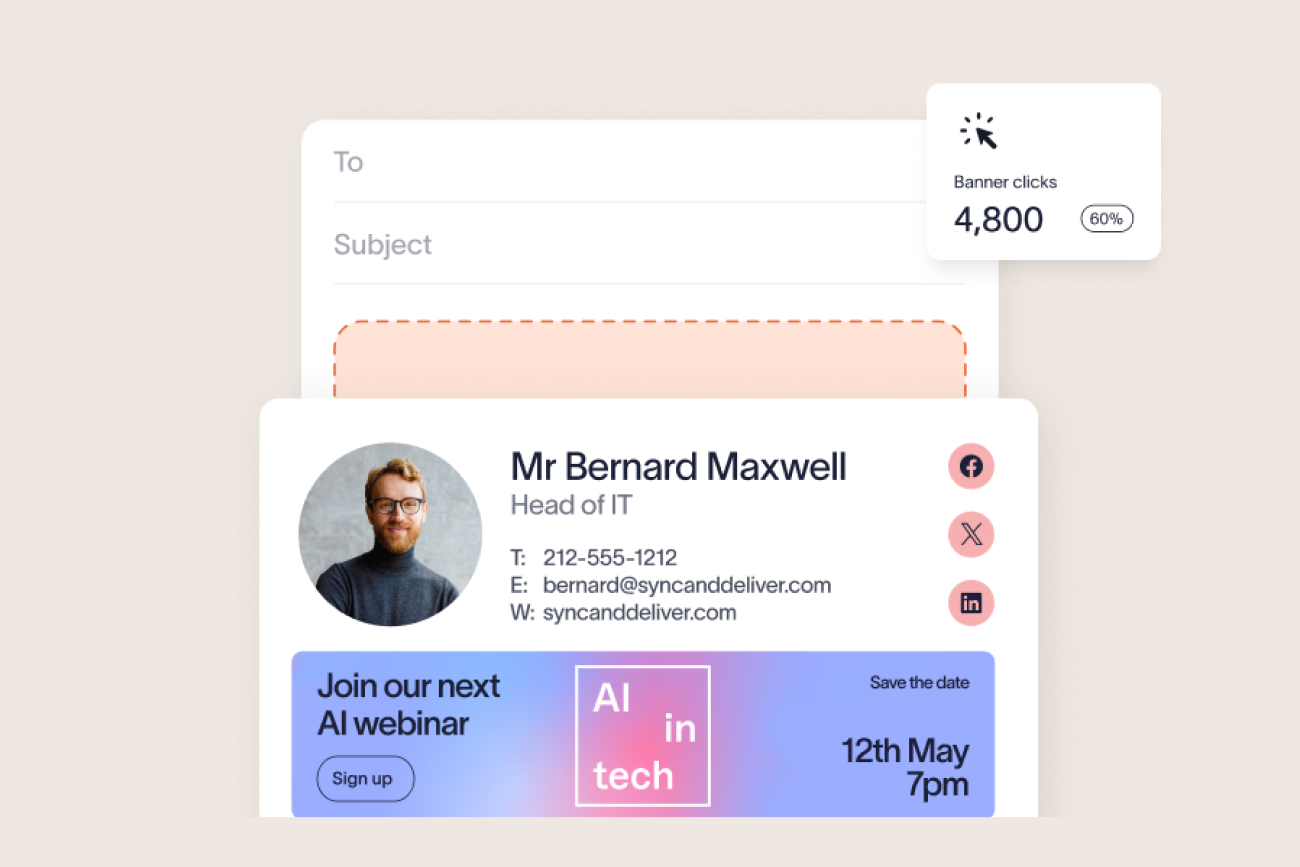
A well-designed email signature block includes logos, contact info, disclaimers, banners, social icons, and booking links
Keep the layout clean, mobile-friendly, and visually consistent across platforms
Use only one primary CTA and avoid visual clutter or unprofessional formatting
Tools like Exclaimer help teams centrally manage email signature design at scale
Keep the overall layout ~600px wide, use web-safe fonts (Arial, Helvetica, Calibri), and host all images over HTTPS with descriptive alt text
Test across Outlook, Gmail, Apple Mail, and mobile clients including dark mode before deploying
What is email signature design and why does it matter?
Email signature design is the practice of setting a consistent, on-brand standard for the signature block on everyone's email: the elements it contains, how it is laid out, and how it renders across devices and clients. At an organizational level, that design holds only when it is applied centrally, so it doesn't depend on each person building their own.
For IT teams and marketing managers responsible for company-wide communications, getting email signature design right means every email your organization sends is on-brand, consistent, and legally compliant at scale.
This guide walks you through everything you need to know about email signature design, from its importance to key elements and best practices, including the benefits of using email signature management software.
Why a professional email signature design is important for your brand
An email signature design is a structured block of text and imagery placed at the end of an email. It features key contact information such as your name, job title, company logo, and website link.

Our latest research shows that 23% of consumers globally cite a professional, branded email signature as a top trust signal when judging a business email, a figure that climbs to 29% among Gen Z and Millennials.
From a marketing perspective, professional email signature design helps:
Promote campaigns and events with clickable banners
Drive website traffic via hyperlinked logos and CTAs
Encourage social engagement with icon links
Reinforce credibility through certifications, awards, or disclaimer
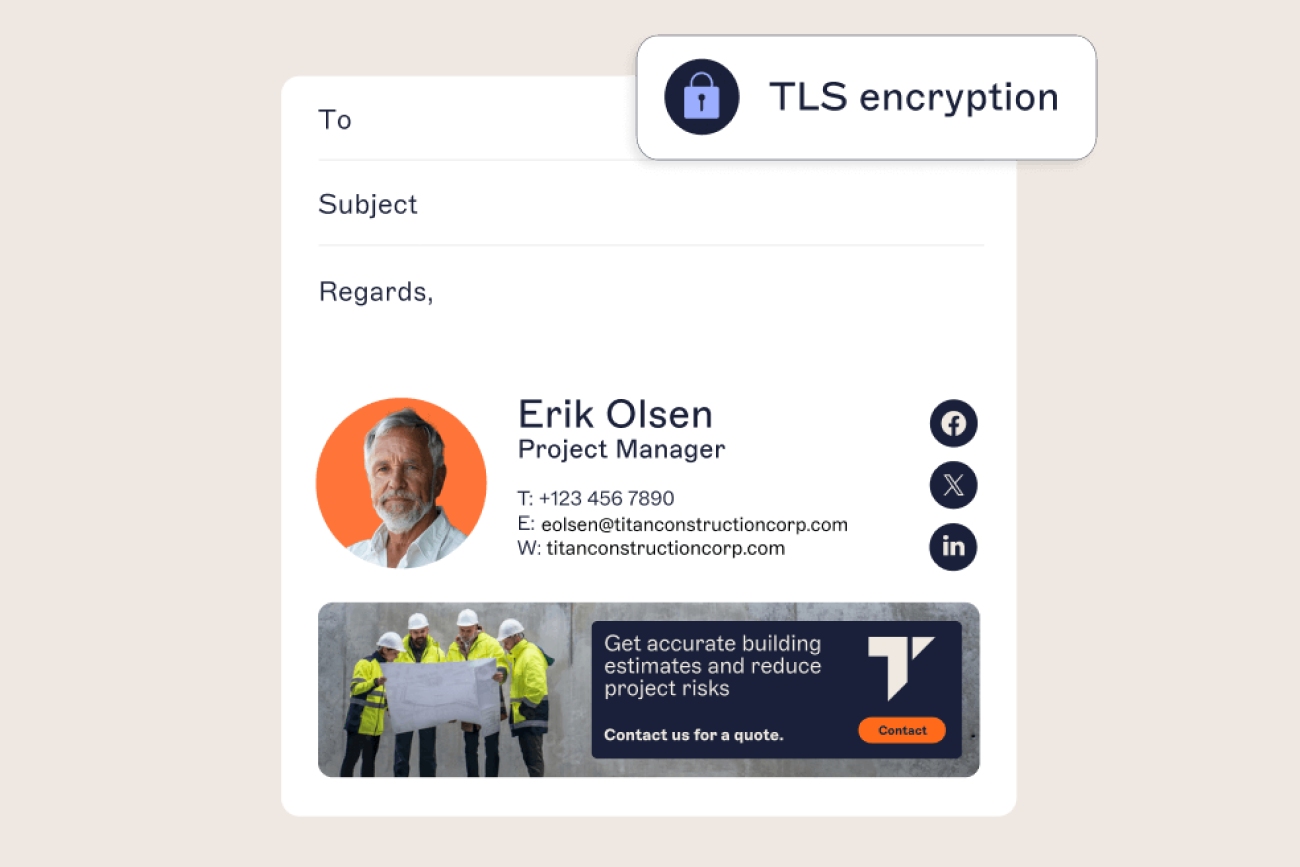
It also plays a vital role in regulatory compliance. Industries like finance, legal, and healthcare often require disclaimers to meet standards such as GDPR, HIPAA, or SOC 2. A properly structured signature keeps these elements are consistently applied, reducing risk without burdening IT.
Most importantly, modern designs ensure consistent rendering across devices and email clients. That means your brand stays professional and compliant everywhere communication happens.
To prototype that standard before rolling it out, a free email signature generator is a useful starting point.
Additional guides
→ Full guide: How to Create a Company Email Signature
→ Full guide: Professional Email Signature Examples
→ Full guide: Contact Details: Top 10 DOs & DON'Ts
What are the key elements of a professional email signature design?
When designing a professional email signature, consistency, clarity, and alignment with your brand identity are key. Whether you're creating an email signature for a sales executive, a CEO, or a customer support agent, the core elements should remain structured and purposeful.
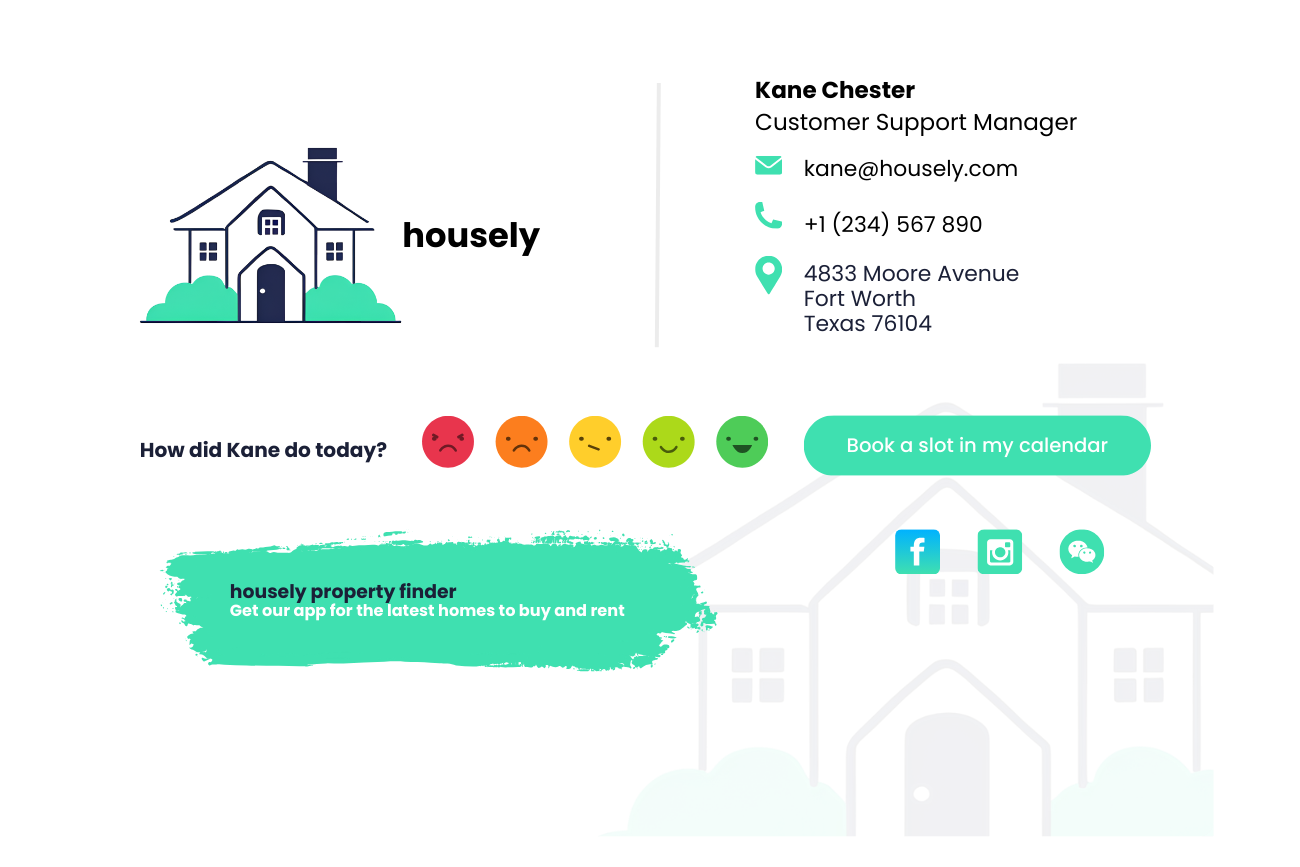
These principles are well understood. The challenge is keeping them consistent across hundreds or thousands of people, each of whom can edit their own signature. One person's good intentions don't make a standard; consistent application does, and the real work of best practice is removing the chances for the design to drift.
Not every element belongs in every signature. Use this as a starting point for what to include and when.
Element | Required | Best practice guidance |
Full name | Yes | Use full first and last name per company policy |
Job title | Yes | Match HR or directory data for consistency |
Company name | Yes | Use the legal or trading name per brand guidelines |
Primary phone | Recommended | One number; avoid listing multiple lines |
Email address | Recommended | Use the corporate email address |
Company website | Recommended | Link to the company homepage or a relevant landing page |
Logo | Recommended | Hosted PNG , JPEG, or GIF; keep display height ~70–100px |
Social icons | Optional | Limit to three or four verified company profiles |
CTA or booking link | Optional | One clear CTA maximum per signature |
Campaign banner | Optional | One per signature; ≤600px wide; use UTM tracking |
Headshot | Optional | Best for client-facing or sales roles; 50–100px square |
Legal disclaimer | Conditional | Add only where required by regulation or company policy |
Here are the essential components every effective email signature design should include:
1. Contact information
Your email signature block should start with clear, up-to-date contact details:
Full name
Job title
Phone number
Email address
Company website (hyperlinked)
Tip
Keep this section clean and legible. Avoid unnecessary info like fax numbers or multiple phone lines unless essential.
Example of a minimal email signature design
Jane Smith, Marketing Director | Example Corp
[[email protected]] | (555) 123-4567 example.com
2. Company logo
Add a professionally scaled and hyperlinked logo to visually reinforce brand recognition.
Recommended size: Max width 200px
Link: Direct to your homepage or a campaign landing page
3. Social media icons
Include social media icons linking to your official channels.
Limit to 3–4 platforms to avoid clutter
Always use current platform logos (LinkedIn, X (formerly Twitter), YouTube, Instagram)
Link icons directly to each profile
4. Email banners
Use email banners in your signature design to promote products, content, events, or offers.
Add beneath contact info for visibility
Use eye-catching designs with one clear CTA
Make banners responsive across devices
Track engagement using UTM codes on banner links to measure performance.
5. User photo
Add a clean, professional photo image to personalize communication.
Ideal for sales, client-facing, or remote roles
Size recommendation: 50px–100px square
Keep background neutral and lighting natural
6. Email disclaimer
Critical for businesses in regulated industries (finance, legal, healthcare, etc.).
Place at the bottom of the signature
Use a smaller font size (7–8pt)
Tailor email disclaimers to regions or departments using dynamic fields if possible
7. Meeting booking links
Make it easy to connect by embedding a scheduling link.
Popular tools: Microsoft Bookings, Calendly, Chili Piper
Use as a text link or CTA button: "Book a Call"
8. One-click surveys
Want fast feedback from customers or clients? Add simple satisfaction icons (smileys, stars, thumbs up) linked to one-click surveys.
Ideal for customer support or client-facing teams
Use platforms like SurveyMonkey, Google Forms, or Exclaimer's built-in feedback tools
9. Awards, certifications, and trust seals
Boost credibility with recognized achievements.
ISO certifications
Industry awards
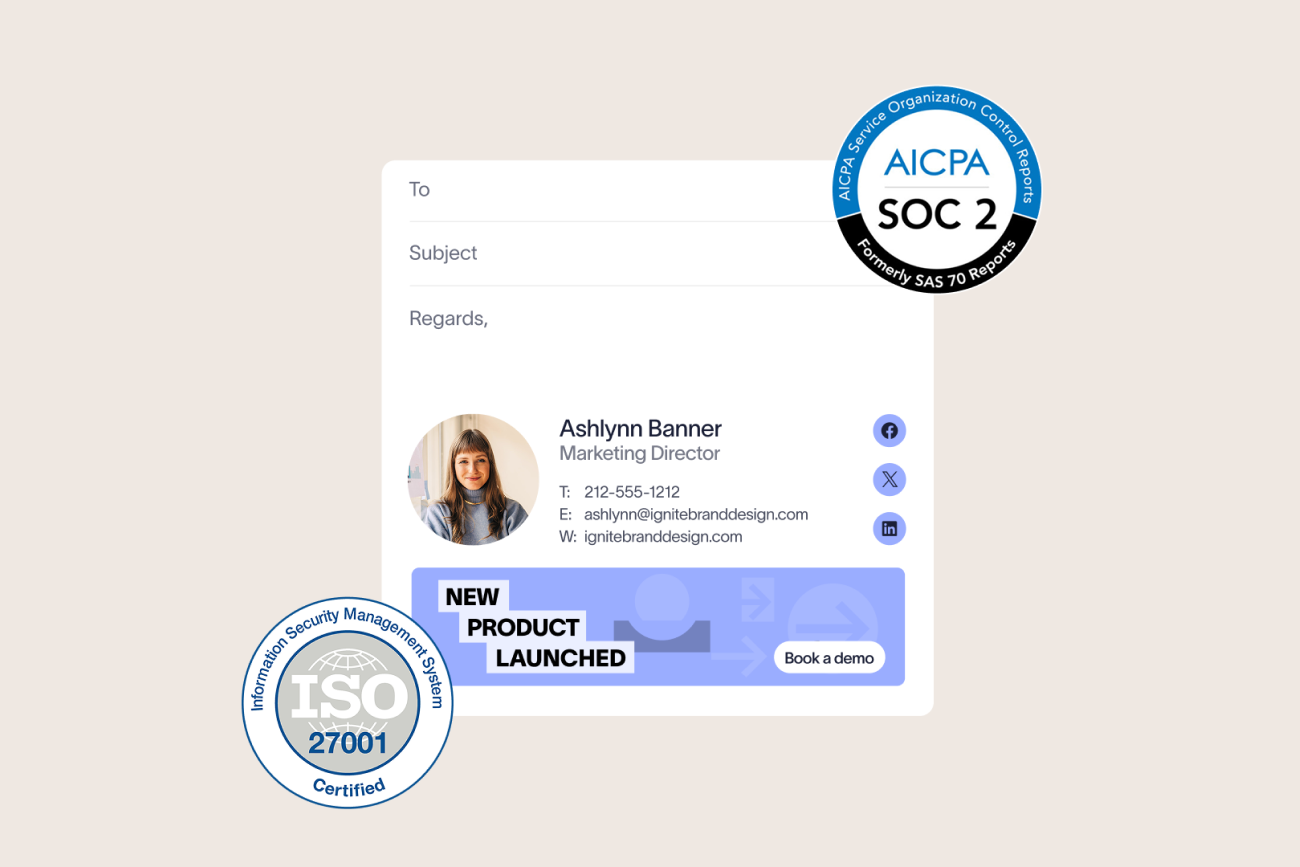
Security badges (SOC 2, Cyber Essentials)
→ Full guide: The 17 DOs and DON'Ts of Email Signatures
→ Full guide: The Top 15 Email Signature Design Tips
Tip
Less is more. Every email signature should be mobile-friendly, visually balanced, and tailored to your audience. Avoid clutter, limit the number of colors and fonts, and test across devices.
How should an email signature design be laid out?
Before you start designing your email signature, it's important to choose the right format. The layout and technology behind your signature will affect how it appears across email clients, devices, and even in reply chains.
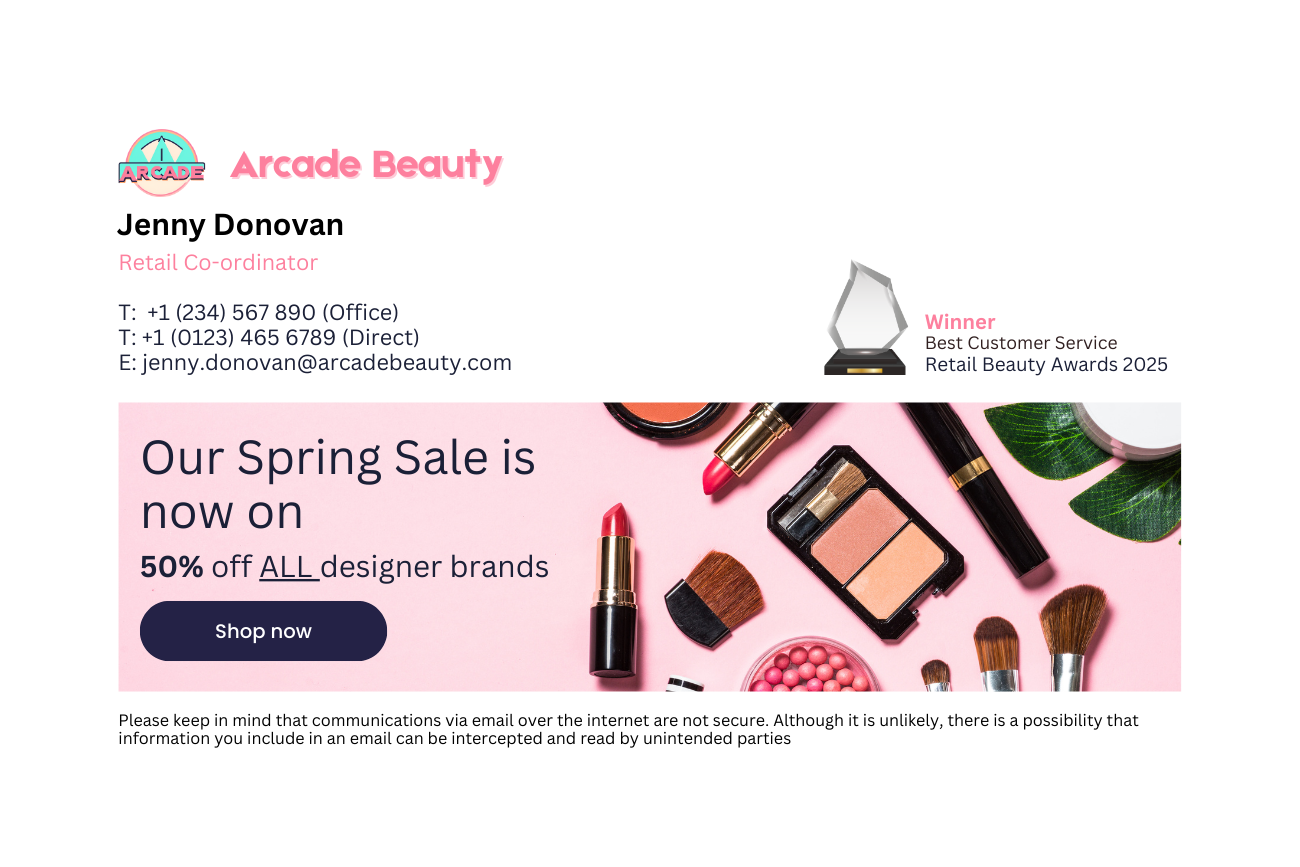
Building that structure with HTML tables is what holds it together across Outlook, Gmail, and Apple Mail; looser markup tends to fall apart. The full mechanics of columns, widths, and alignment can be found in our email signature format guide.
Here are the three main types of email signature formats and when to use them:
1. Plain text signatures
Plain text email signatures are simple, universal, and compatible with all email clients. They contain only unformatted text: name, job title, company, contact details, disclaimer (if required).
Pros | Cons |
|---|---|
Loads quickly on all devices | No branding elements (logos, colors, fonts) |
No rendering issues | Can't include clickable links or images |
Easy to set up | May appear unprofessional or outdated |
Best for: Basic internal communications or organizations with strict text-only policies.
2. Image-only signatures
Image-based signatures use a single image (or multiple images) to represent the entire signature block.
Pros | Cons |
|---|---|
Visually customizable without coding | Often blocked by email clients |
Looks consistent on supported platforms | Appears as an attachment or blank space |
— | Images are not accessible or searchable |
— | Can't include working links (only one clickable image if any) |
Best for: Very small teams or temporary campaigns but not recommended for long-term professional use.
3. HTML email signatures (recommended)
HTML email signatures provide the most flexibility and customization. They support a combination of text, images, logos, clickable links, and promotional banners.
Pros | Cons |
|---|---|
Fully customizable design | Requires HTML skills or signature management software |
Supports branding and visual hierarchy | Testing needed to ensure consistency on all platforms |
Allows clickable banners, CTAs, and social media icons | |
Works well across most devices and email clients | |
Enables dynamic fields and legal disclaimers |
Best for: Professional businesses, especially those needing centralized email signature management, branding control, or compliance enforcement.
Tip
Use HTML for all external, client-facing, and marketing-led email signatures. Keep plain text as a fallback. Avoid image-only signatures for anything beyond temporary or small-scale use.
What are the recommended specifications for email signature design?
Use these specifications as the baseline for any professional email signature design. They reflect safe rendering limits across Outlook, Gmail, Apple Mail, and mobile clients.
These figures line up with Exclaimer's own guidelines for email signature design, which recommend the same 320–600px width range, table-based layout, and JPG/JPEG/PNG/GIF format list.
Design element | Recommended specification |
Overall signature width | ~600px maximum |
Layout | Single-column for mobile; table-based HTML for desktop |
Fonts | Arial, Helvetica, Calibri, Georgia, or Verdana |
Font size | 11–12pt name/title; 8–10pt contact details; 7–8pt disclaimers (desktop). 14–16px (mobile) |
Logo | Hosted PNG, JPEG, or GIF; ~70–100px display height |
Headshot | Square crop; ~100×100px display size |
Campaign banner | ≤600px wide; one CTA per banner |
Image hosting | HTTPS CDN; absolute URLs |
Alt text | Required for every image |
Images per signature | Three to five maximum |
Test environments | Outlook, Gmail, Apple Mail, iOS, Android, dark mode |
Deployment | Centralized, server-side management |
Follow these best practices to ensure your signature looks professional and works across devices and email clients:
1. Use properly sized images
Images play a big role in a branded email signature. To keep your signature lightweight and crisp:
Logos: Max 200x200px
Banners: Between 320–600px wide (450px is ideal)
Photos: Headshots should be 50–100px square
Use hosted images, not embedded ones to prevent them from showing as attachments.
Always add alt text for accessibility and image fallback.
When exporting images for email signatures, export raster files (logos, headshots, banners) at 2× their display size, then compress before uploading. This keeps images sharp on high-DPI screens without oversized file sizes.
Test all images in Outlook, Gmail, Apple Mail, mobile apps, and dark mode before deployment. Logos with transparent backgrounds can invert or disappear in dark mode. Use a version with a solid background, or add a subtle border as a fallback.
HTML example: Hosted logo with alt text
<img src="https://cdn.example.com/signatures/company-logo.png" width="160" height="50" alt="Company name logo" style="display:block; border:0;">
2. Stick to brand colors
Color reinforces brand identity, but it must be used carefully:
Use hex color codes (e.g., #005EB8) for consistency
Limit your palette to 2–3 colors max
Avoid background colors as they may not render correctly in dark mode or mobile
Use color to highlight key elements like CTAs or social icons
“The principal purpose of an email is the sender's message, not the marketer's. You don't want to over-brand your emails and compromise that fundamental purpose.”
Source: Email Signatures for Dummies®
3. Use web-safe fonts
Choose email signature fonts that display reliably across all email clients:
Recommended fonts: Arial, Helvetica, Georgia, Verdana, Tahoma
Use one main font + one fallback font
Keep font sizes between 11pt–13pt
Avoid script or decorative fonts — they often break or appear unprofessional
Use font stacks to ensure a safe fallback if the first font choice isn't supported:
Arial, Helvetica, sans-serif
Calibri, Arial, sans-serif
Georgia, serif
Custom or brand-specific web fonts are not reliably supported in most email clients. Keep live text in a web-safe font. If your brand typeface is essential for visual impact, apply it only in a hosted image with descriptive alt text.
HTML example
<td style="font-family: Arial, Helvetica, sans-serif; font-size: 12px; color: #222222;">Jane Smith | Marketing Director</td>
4. Structure your layout with tables
To create a clean and mobile-friendly layout:
Use HTML tables for layout (not divs) — tables display more consistently across Outlook, Gmail, Apple Mail, etc.
Align elements in logical rows or columns (e.g., name/title, then contact, then links)
Make use of white space as it helps with scannability and prevents clutter
Avoid bullets and unnecessary design elements
5. Design for mobile responsiveness
Use single-column layouts
Avoid heavy graphics
Compress images to load quickly
Test on major mobile email clients (Outlook mobile, Gmail app, Apple Mail)
Set font sizes to at least 14–16px for mobile readability. Any tap targets (phone number links, CTA buttons, social icon links) should be at least 44×44px to meet standard usability guidelines.
HTML example: Responsive banner image
<img src="https://cdn.example.com/signatures/banner.png" width="600" style="width:100%; max-width:600px; height:auto; display:block;" alt="Event registration — [Month Year]">
6. Keep HTML lean and test across clients
The safest overall email signature width is around 600px. This renders without horizontal scrolling across desktop and mobile email clients. Keep the HTML clean and avoid excessive embedded elements or hidden markup. Gmail may clip the signature or the message when total HTML size gets too large.
Before rolling out a new email signature design company-wide, test it in at least these clients: Outlook desktop and mobile, Gmail, Apple Mail, and iOS Mail. Tools like Litmus and Email on Acid let you preview across multiple clients simultaneously.
7. Be careful with AI-generated designs
AI tools can mock up a signature design in seconds: a logo placement, a color scheme, a layout idea. The gap is between the mockup and a working signature: that visual still has to become table-based HTML that survives Outlook's and Gmail's rendering quirks, and not everything an AI generates translates cleanly.
Exclaimer's own guidelines for email signature design flag this directly as one of the common mistakes teams make: treating an AI-generated visual as a finished design rather than a starting point that still needs rebuilding in supported HTML, fonts, and image formats. Use AI for the idea. Build the actual email signature the way every other design in this guide gets built.
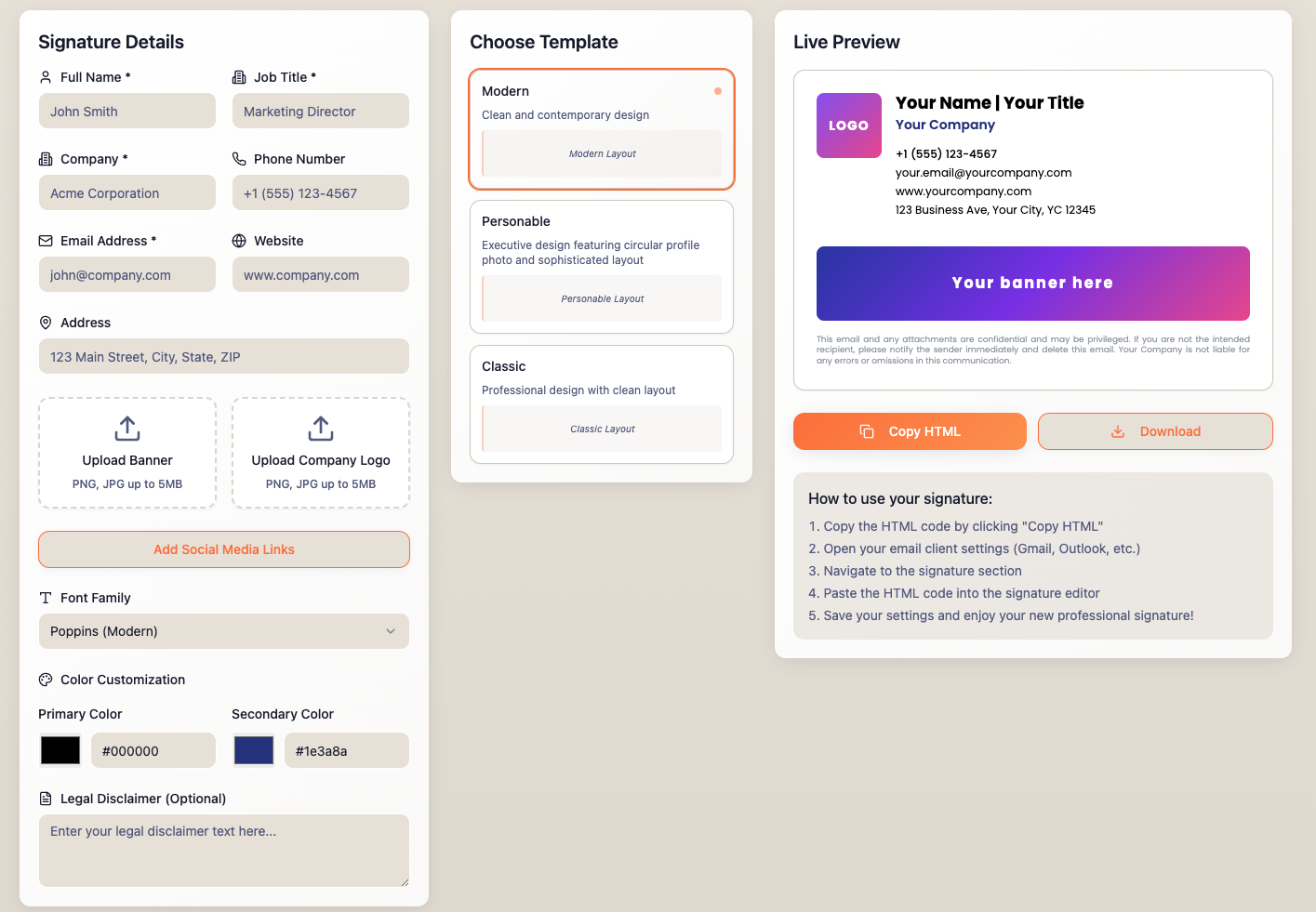
Want to create a professional HTML signature without needing to code?
Try Exclaimer's email signature generator — perfect for centralized control, dynamic updates, and consistent branding.
What do the best email signature designs look like?
Whether you're designing email signatures for executives, sales teams, or internal staff, the layout and elements should reflect your brand, audience, and communication goals.
Here are email signature design examples organized by profession, format, and occasion — each optimized for visual clarity, mobile responsiveness, and branding.
By profession
Use job-specific email signature block designs to tailor tone, contact details, and CTAs based on audience expectations. A realtor's signature typically leans on a headshot and a booking link; a CEO's usually drops both in favor of a clean, minimal block.
By design
Format changes the trade-offs more than profession does: an HTML-and-image design gives the most branding control, a plain-text version is the safest fallback, and a mobile-first template is built around a single column from the start rather than adapted to one.
By seasonality or campaign
Seasonal and campaign signatures are meant to be temporary. They're updated for a holiday, a launch, or an observance, then swapped back out. This is exactly the kind of change that's fast centrally and slow done by hand across a whole company.
Visual example breakdown
Element | Why it matters | Example use case |
Company logo | Reinforces brand identity | All external emails |
User photo | Personalizes communication | Sales or customer-facing roles |
Social icons | Drive traffic to social platforms | Marketing or community engagement teams |
Email banners | Promote offers or content | Demand gen campaigns |
One-click surveys | Capture real-time customer sentiment | Customer success and service teams |
Legal disclaimers | Ensure regulatory compliance | Legal, financial, or healthcare orgs |
How do I design the best email signature?
Designing the perfect email signature doesn't have to be complicated. Follow these steps to create a professional, branded signature that enhances communication, reinforces brand identity, and functions across devices.

1. Define your purpose and audience
Start by identifying what you want your email signature to achieve: brand recognition, lead generation, compliance, or personalization. Consider who will use it and who the recipients are.
2. List essential information
Keep your email signature block simple and scannable. Include only key contact information: full name, job title, company name, phone number, email address, and company website (hyperlinked).
Tip
Avoid personal quotes, multiple phone numbers, or unnecessary links.
3. Incorporate branding elements
Your email signature should align with your company's visual identity. Key branding elements include company logo (clickable, hosted, properly sized), brand fonts and colors (web-safe, accessible), and tagline or call-to-action ("Book a demo", "See pricing").
Tip
Stick to your brand's official color palette and avoid overly bright or mismatched colors.
4. Choose the right layout
Group related items together: name and job title at the top, contact details in the middle, branding elements (logo, tagline, or CTA) toward the bottom.
Tip
A vertical layout is often better than a horizontal one, as it scales more effectively across different devices and screen sizes.

5. Use the right tools for design
Select the best tool based on your skills and needs: HTML coding, email signature generators (like Canva or HubSpot for individuals), professional design tools, or email signature software like Exclaimer for centralized management.
Tip
If you're not a developer, avoid using marketing email CMS tools or Word to build your template. Use an email signature editor for the best results.
6. Optimize for mobile and email clients
Use single-column layout, scale images appropriately, avoid wide banners or embedded elements, and test on Gmail app, Outlook mobile, and Apple Mail.
Tip
Use responsive CSS media queries (or Exclaimer which handles this for you).
7. Test the links and functionality
Before deployment: click every link, hover over icons, check banner images load correctly, and confirm phone numbers are tappable.
8. Add legal disclaimers
In industries like finance, healthcare, and law, a legal disclaimer is non-negotiable.
Best practices:
Keep it short and readable
Place it below the main signature block
Use a smaller font size
Update it regularly based on your legal team's guidance
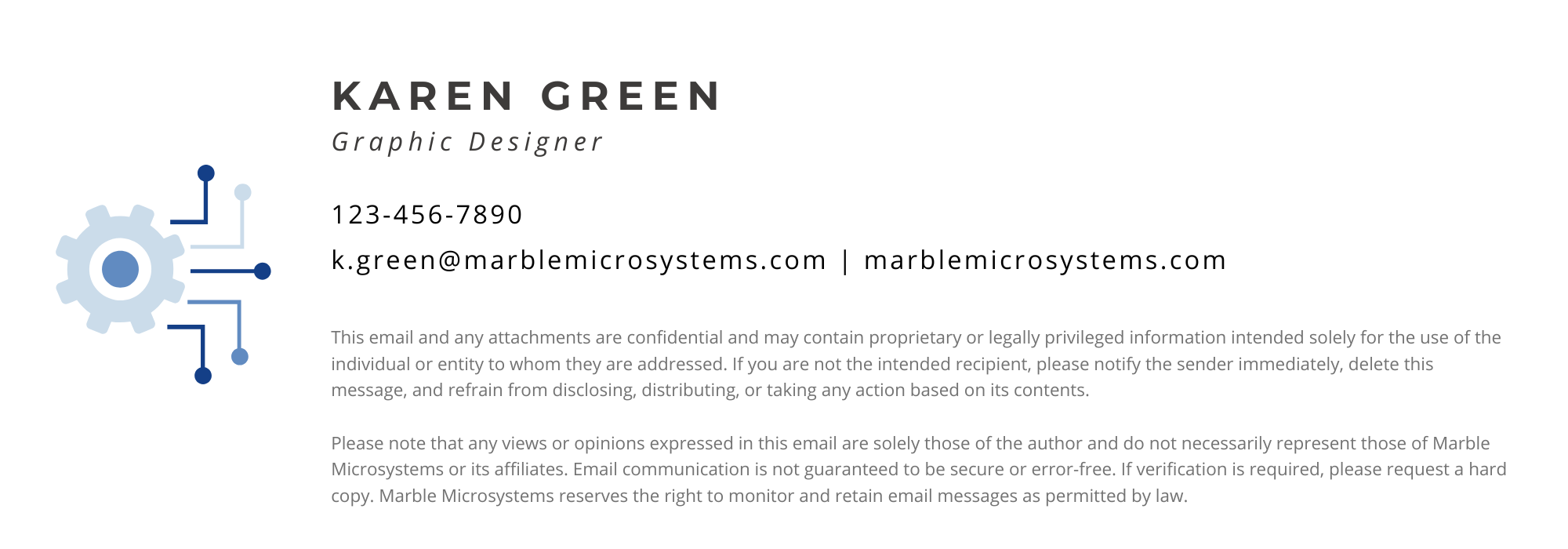
To give you a sense of what these look like in practice:
Healthcare organizations may add a HIPAA-compliant confidentiality notice stating that the email contains protected health information intended solely for the named recipient.
Financial services companies subject to FINRA or SEC oversight commonly include supervised communication notices and may be required to archive email records under regulations such as SEC Rule 17a-4.
UK and EU companies may be required to include registered company name, registration number, and registered address under the UK Companies Act 2006 or equivalent EU jurisdiction regulations.
Law firms typically include an attorney-client privilege notice and a statement that the communication does not constitute legal advice unless a formal engagement exists.
Disclaimer requirements vary by jurisdiction and industry. Confirm applicable requirements with your legal team before deploying.
How do you use banners, GIFs, and social icons in email signatures?
Banners, GIFs, and social icons turn an email signature into a marketing channel: a banner promotes a campaign, a call-to-action drives a conversion, social icons keep the brand present, and an animated GIF adds movement where it earns attention.
 The catch is keeping all of it current. A campaign that ended last month shouldn't still be running in outbound signatures, and that only works if the banner can be swapped centrally instead of asking each person to update their own.
→ Full guide: Email Signature Banners: A Complete Guide
→ Full guide: Animated GIFs in Email Signatures: Pros & Cons
→ Full guide: Social Media Icons in Email Signatures (100+ Icons)
→ Full guide: Email Signature Marketing
What are examples of professional email signature designs?
Visually, technically, and professionally — the best email signature designs should work in every sense of the word.
1. Include essential contact information
 In practice, this means name and title on one line, one phone number and one email directly below, and nothing else competing for attention above the fold — the fuller rules are in the elements section above; this is what following them actually looks like.
2. Enhance engagement with social media icons
 The visual test: icons should be the same size, evenly spaced, and use each platform's current logo — a mismatched icon set (old Twitter bird next to a new X logo, inconsistent sizing) is the most common way this element gives away that a signature wasn't built centrally.
3. Ensure mobile optimization
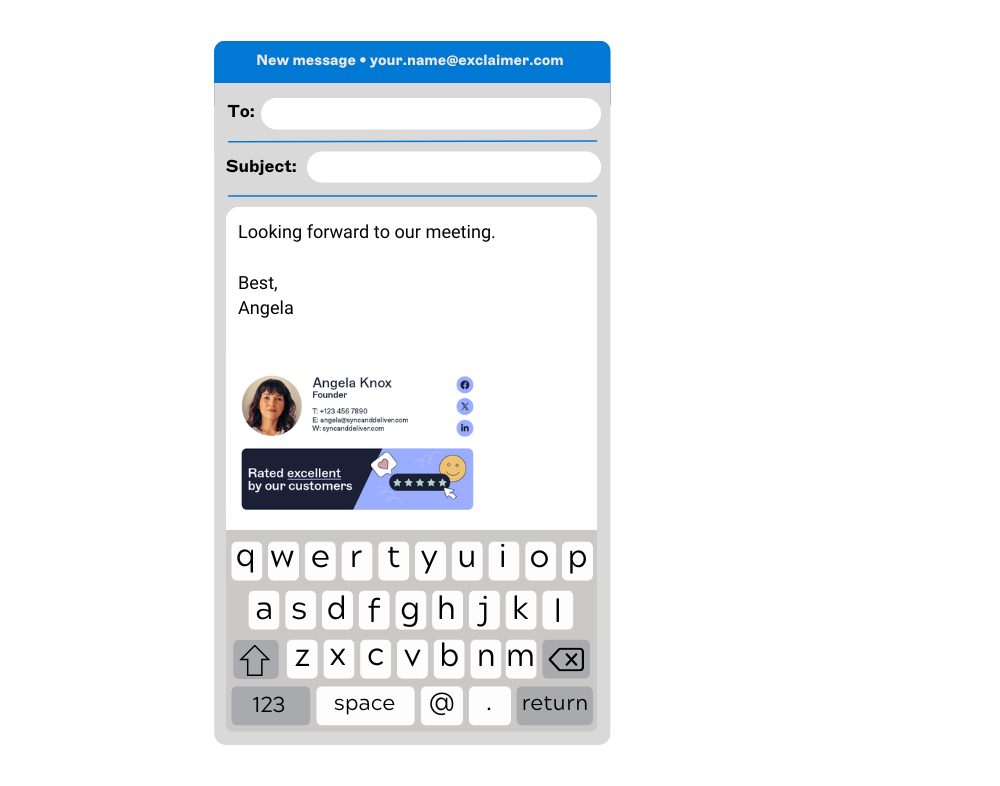
Two environments dominate email opens: Apple's Mail suite (Mail, iPhone, iPad, and Mail Privacy Protection) covers 64.66%, and Gmail covers another 24.11%, per Litmus's Email Client Market Share data for May 2026. Together, that's nearly 89% of where signatures actually get read.
Apple's Mail Privacy Protection deliberately hides whether an open happened on an iPhone, iPad, or Mac, so there's no reliable way to know the exact device split from the data.
That's the real argument for designing and testing for phone-sized screens regardless: you can't tell from the numbers which of those opens are mobile, so the safe assumption is that a large share of them are.
Use single-column designs
Limit horizontal content
Test on Outlook Mobile, Gmail App, and Apple Mail
Keep all text legible at small screen sizes
Use hosted images (avoid embedded ones that appear as attachments)
4. Use different signatures for different contexts

First-time outreach: Full signature with banner and CTA
Follow-ups / replies: Minimalist version with just name, title, and phone
Internal emails: Streamlined design, no banners or social links

5. Using colors effectively
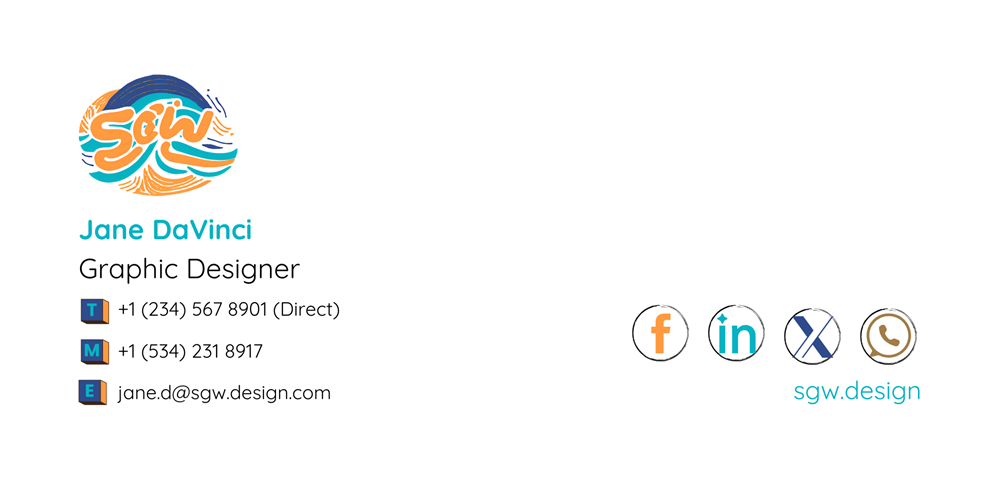 Stick to your brand palette: primary color for headers, icons, and name; accent color for CTAs and dividers; black, gray, or navy for body text.
6. Choosing the right image format

Use PNG for logos (transparent background, high quality)
Use JPEG for staff photos (smaller file size)
Avoid SVG — not all email clients support them
Host images externally (don't embed)
Keep total signature size under 50 KB
"You can't use SVGs, scalable vector graphics. While they're perfect for websites, they sadly aren't supported at all on email signatures."
Exclaimer's own guidelines for email signature design confirm the same: supported formats are JPG, JPEG, PNG, or GIF only.
7. Promote marketing activities with email banners
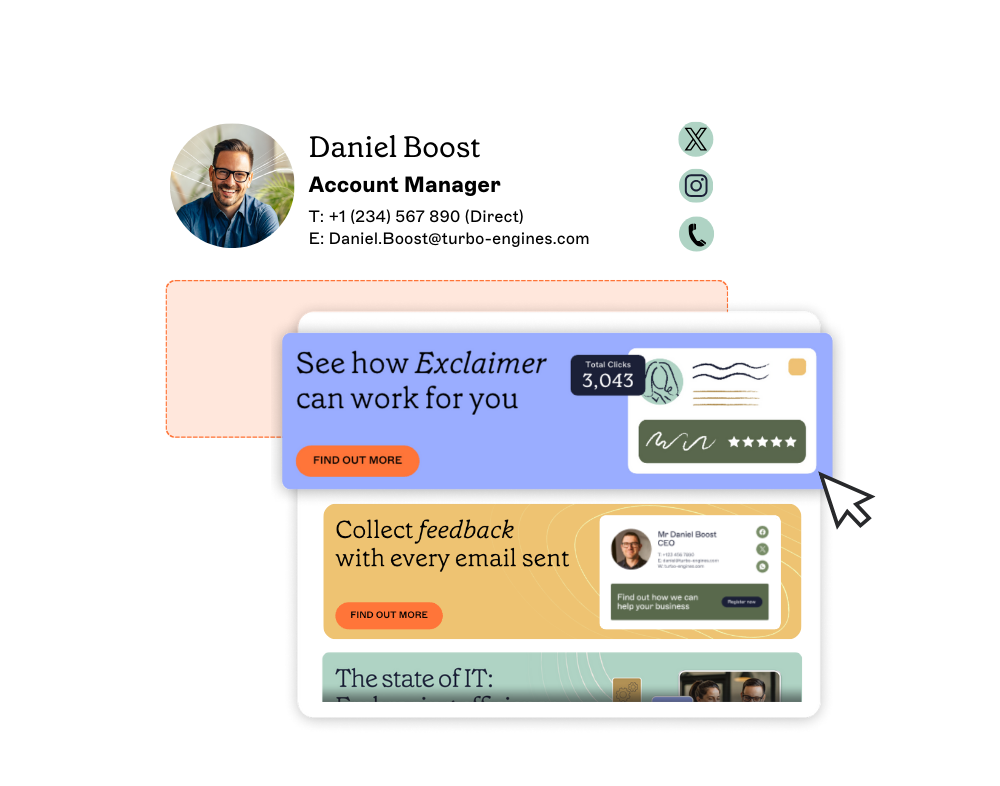 The same banner-rotation rule from the elements section applies here in practice: whatever it's promoting now, someone needs to own swapping it out when that campaign ends, or it becomes the stale-banner problem the "consistent at scale" section describes.
8. Consider internal email signatures
 Use internal email signatures to share company news, highlight employee recognition, promote events, and link to HR resources. Keep them minimalist: no social media links or external CTAs.
9. Gather customer feedback efficiently
 The one addition worth calling out versus the elements section above: a feedback icon works best placed at the very end of the signature, after any disclaimer, so it reads as a closing prompt rather than competing with the primary CTA for attention.
10. Use a strong call-to-action
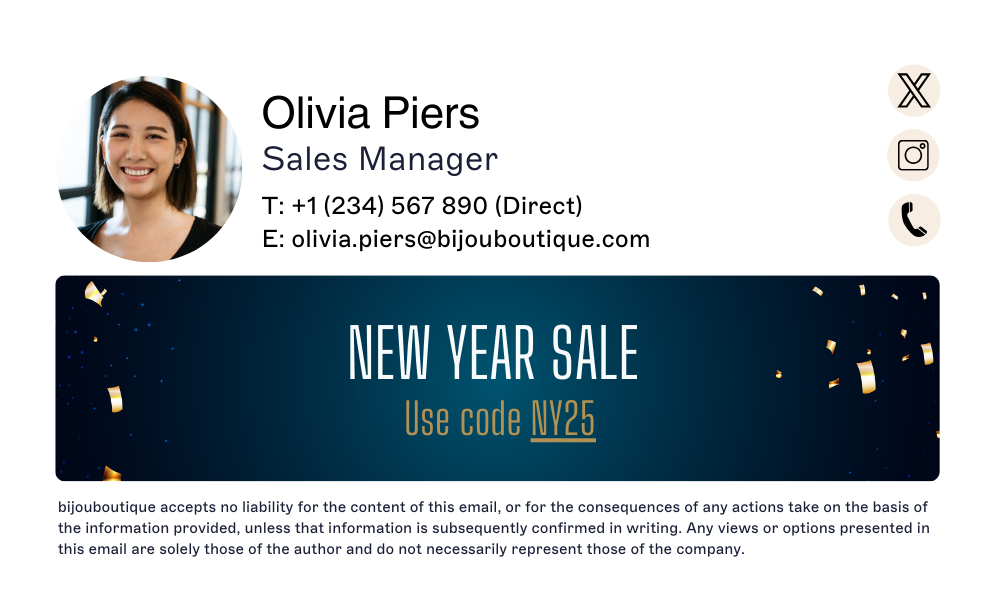 Example CTAs: "Book a demo," "Download the report," "Refer a colleague," "Chat with support." Use clear, visually distinct buttons. One CTA per signature is ideal.
11. Maintain legal compliance
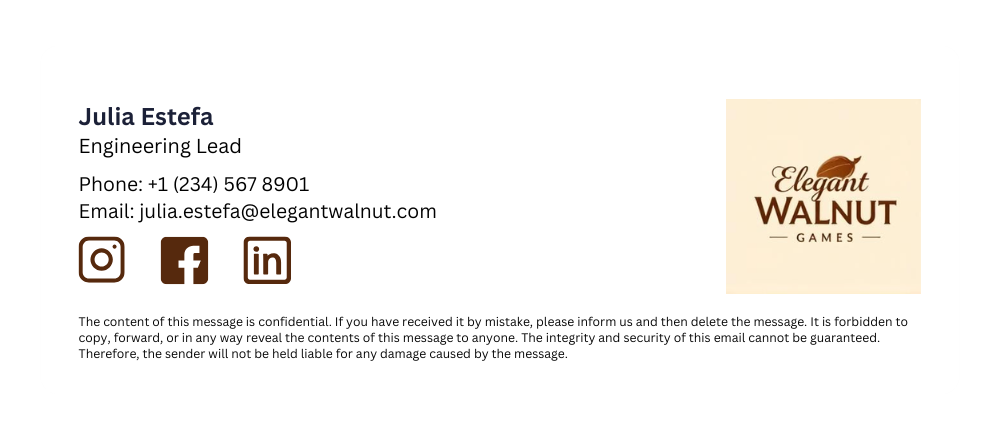 Same placement rule as the elements section: smaller font, below the main block, visually separated so it doesn't compete with the primary CTA.
What should you use to design your email signature?
Companies have a wide range of tools and methods available to design professional email signatures, from simple email signature builders to advanced software that integrates with email platforms for centralized management.
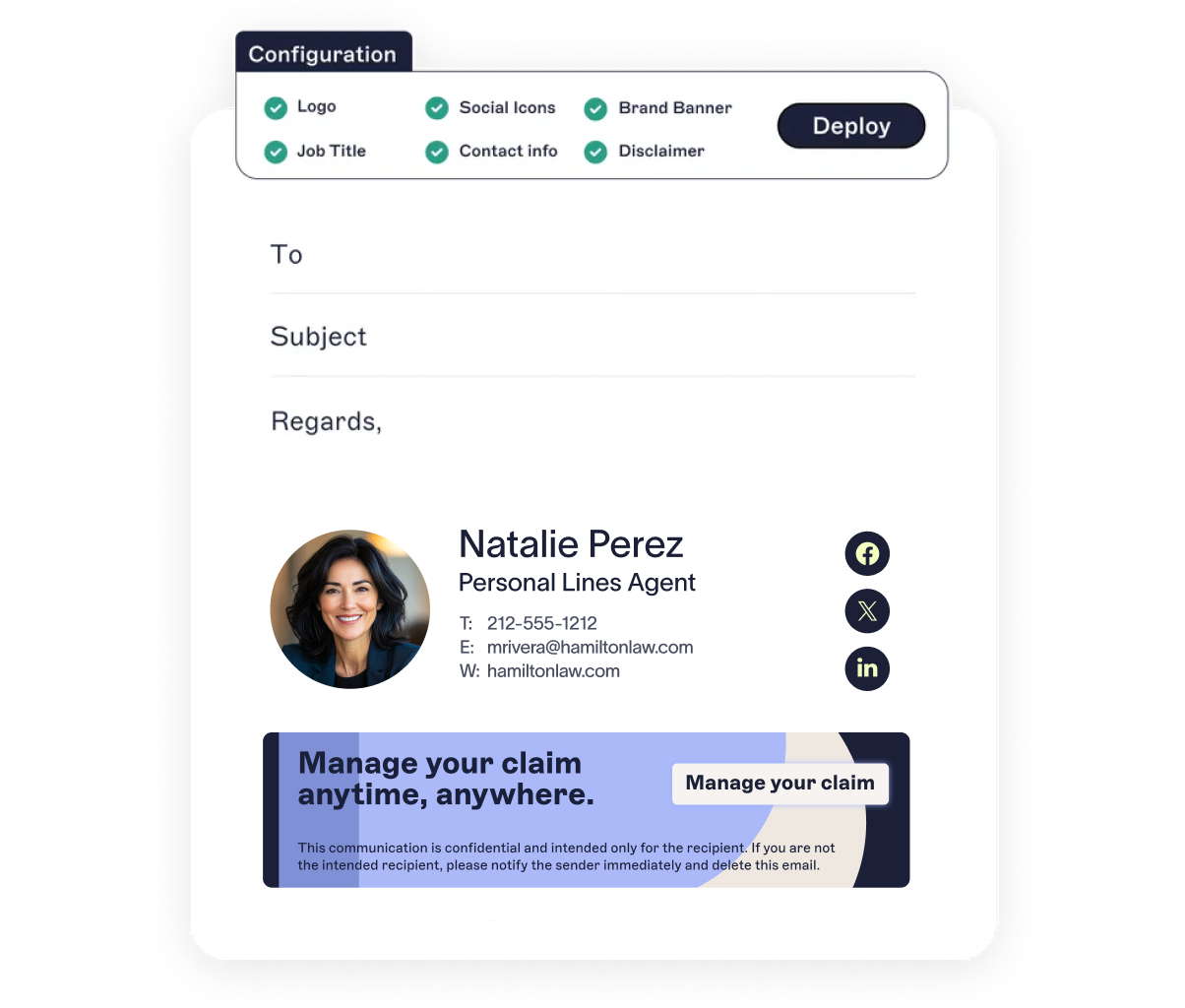
1. Email signature management software (best for companies)
An email signature management solution offers a centralized platform for designing and updating signatures for all employees.
Best for:
Organizations with 10+ employees
IT or Marketing teams managing branding at scale
Industries with legal or regulatory requirements.
Key features:
Centralized admin dashboard; directory integration (Microsoft Entra ID, Google Workspace Directory)
Role-based access for IT/Marketing
Banner scheduling
Analytics and compliance tools
Mobile and cross-platform support
If your brand or compliance team wants full control, Exclaimer is your best option.
2. HTML coding (flexible but technical)
Best for:
Developers or designers
Complex, custom layouts.
Challenges:
Requires ongoing maintenance
Can break in certain email clients
Difficult to scale or update across teams
3. Graphic design software (high customization, low practicality)
Best for:
Custom layouts or visual mockups.
Challenges:
Outputs are usually image-based
Difficult to update or manage
Poor deliverability and accessibility.
4. Email signature generators (only for individuals)
Best for:
Freelancers
Individual professionals.
Challenges:
No central management
Not suitable for large companies
Limited control over formatting across devices
5. Professional designers (great branding, higher cost)
Best for:
Brand-first companies
High-value personal signatures (e.g., C-suite execs)
Challenges:
Requires clear specs for email compatibility
Must still be coded in HTML or applied via a platform
Ongoing updates require more time or budget.
Tip
Pair professional design with an email signature management tool for best results.
Need | Best option |
Company-wide branding | Email signature software (e.g., Exclaimer) |
Solo user, fast setup | Online generator |
Custom control | Hand-coded HTML |
Visual-first design | Graphic software + HTML conversion |
Premium design | Pro designer + scalable application tool |
How do you keep email signature designs consistent at scale?
Email signature design standards break down when employees manually copy, edit, or update their own signatures. The reliable approach is centralized, server-side management: IT or marketing controls the approved template, deploys it through the mail server or a signature management platform, and directory sync automatically populates user-specific fields like name, title, phone, and department. This keeps every email signature consistent across Outlook, Gmail, Apple Mail, desktop, and mobile. What would otherwise take weeks of individual updates becomes a single template change.
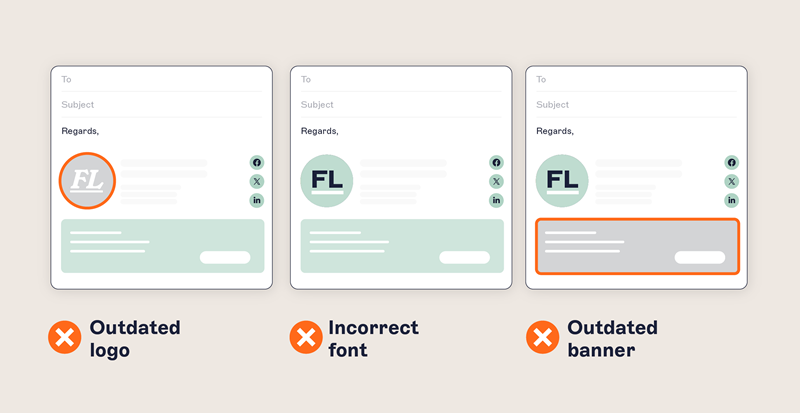
Common implementation methods include:
Exchange transport rules
- Microsoft 365 mail flow rules
Google Workspace routing
- Microsoft Entra ID directory sync
Google Workspace Directory sync
Dedicated platform like Exclaimer
The gap shows most at the moments that matter. A rebrand, a regulatory change, or a new campaign all mean updating the signature for everyone. Done by hand across 500 employees, that's weeks of tickets and chasing. Done centrally, it's minutes.
92% of IT leaders agree that consistent, well-managed email signatures build trust and professionalism, yet 80% still rely on manual methods or user self-service, and only 18% use centralized management. That's despite 35% naming email signature management one of their top two most time-consuming tasks (Exclaimer's State of Business Email 2025 research, 4,009 IT professionals across the UK, US, Germany, and Australia, Censuswide, April 2025).
Key takeaway
ERIKS Digital, a global industrial service provider, moved to centralized email signature management to deliver brand consistency and centralized control without adding to IT's workload. That's the pattern this section describes in practice: the inconsistency isn't hypothetical, and it's usually brand or marketing that spots it first, not IT.
What's involved | Design left to users | Centralized email signature management |
Who applies the design | Each employee, by hand | Applied automatically after the email is sent |
Keeping to the standard | Depends on people following instructions | Enforced for everyone |
Rebrand across 500 staff | Weeks of manual updates | Minutes, rolled out centrally |
Marketing and IT | No shared mechanism | Marketing owns the standard, IT owns deployment |
Consistency across devices | Drifts over time | Uniform |
→ Full guide: 10 Steps to Creating a Company Email Signature Policy
→ Full guide: Why Email Signature Branding Is Important
How does Exclaimer manage email signature design at scale?
Exclaimer puts the design standard where it can actually be enforced: on the server, applied to every email automatically.
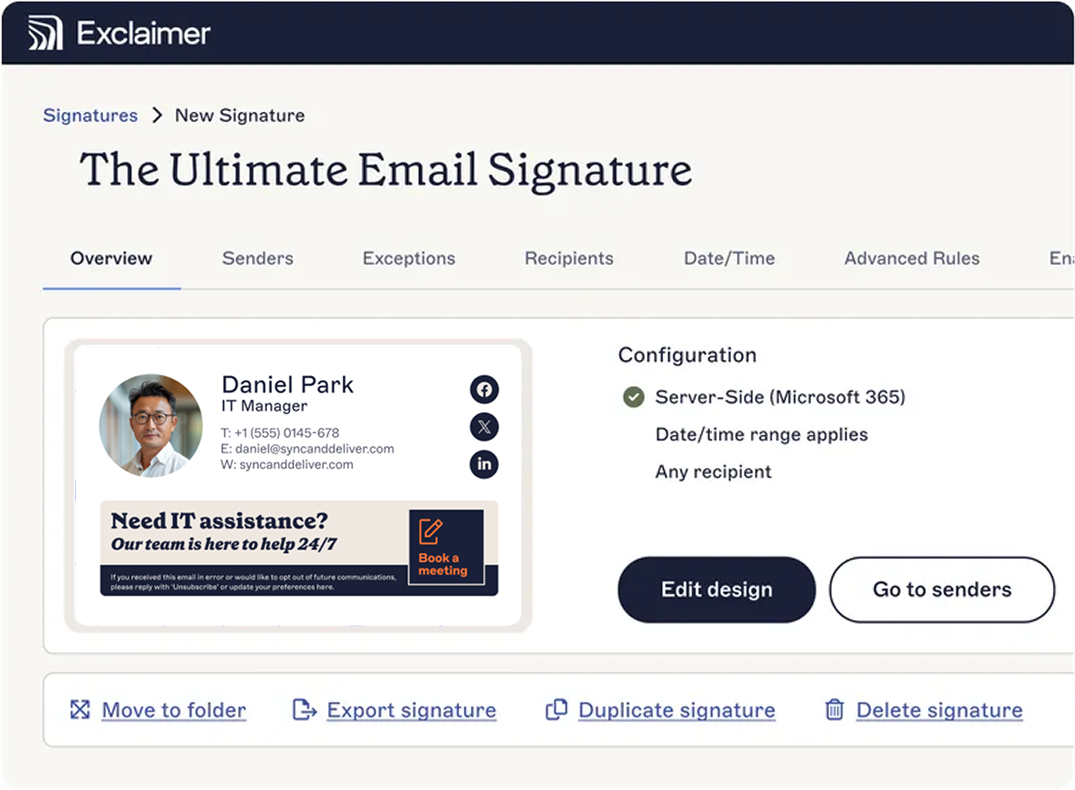
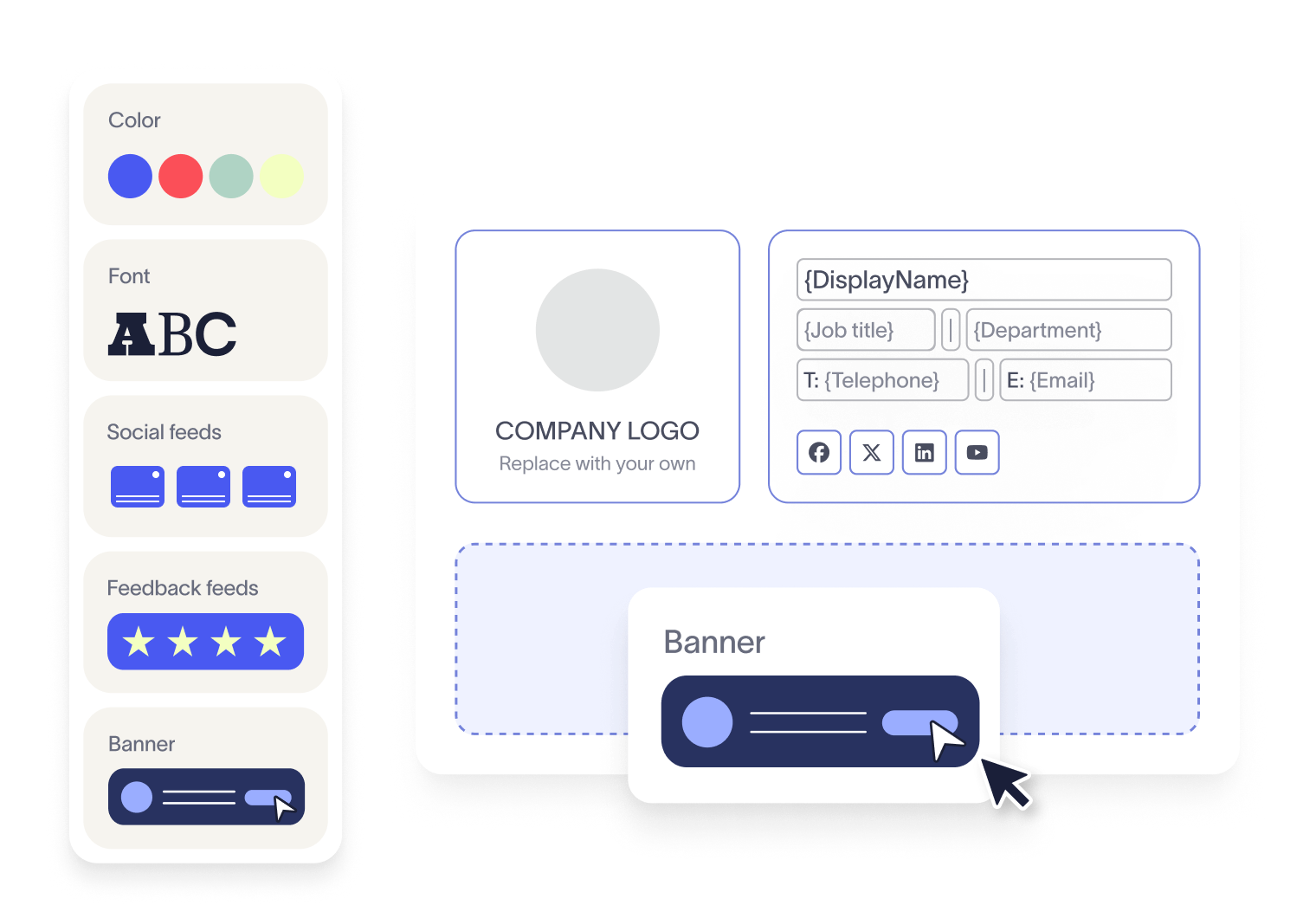
Brand Kits: Marketing defines the approved logos, fonts, colors, and disclaimers once, and IT deploys them company-wide, with any changes to the kit automatically flowing through to the signatures that use it.
Signature rules: Assign the right template to the right people and apply it server-side, so every email carries the correct design regardless of device type or environment.
Directory sync: Connected to Microsoft Entra ID or Google Workspace Directory, signatures update automatically as employee details change, with no manual maintenance.
Cross-platform: Works across Microsoft 365 and Google Workspace.
The result is a design standard that marketing can set and IT can guarantee across every email and device.
Start designing email signatures that do more
A great email signature design is only as good as your ability to get everyone to use it.
The design itself is the straightforward part: the elements, the layout, the fonts. Keeping it consistent across the whole organization is the work, and that takes applying it centrally with a management layer behind it. And per Exclaimer's own research, it's the work 80% of organizations are still doing by hand.
Start your free Exclaimer trial to keep your logo, colors, and disclaimers from drifting once IT stops checking every signature by hand.